
WAVLINK USB 3.0/USB C to HDMI Universal Video Adapter
4.4Editor score
Supports Up to Six Monitors
Built-in Microphone Input
Compact and Portable
This guide compares the top Displaylink adapters for Mac and Windows, evaluating dual monitor support, charging speed, and compatibility for productivity
Finding the right Displaylink adapter is essential for modern professionals who need to expand their workspace beyond single-screen limitations. These devices use advanced technology to drive multiple external monitors from a single USB port, enabling seamless multitasking and improved workflow efficiency.
We analyzed the leading models based on video output quality, system compatibility, and build reliability. Our comparison focuses on how well each adapter handles extended displays, charging capabilities, and driver requirements across different operating systems to help you make an informed decision.
Each pick below highlights specific strengths such as port variety, resolution support, and thermal design. Please note that product availability and pricing may change over time, so verify current details on the manufacturer or retailer site before purchasing for your specific needs.
4.4Editor score

4.4Editor score

4.5Editor score
The following table provides a side-by-side overview of all ten adapters evaluated in this guide. It highlights key technical specifications and unique selling points to help you quickly identify the model that aligns best with your specific hardware and workflow requirements.



This ACASIS adapter allows you to connect two external monitors using a single USB-C or USB-A port. It stands out for its ability to deliver 4K resolution at 60Hz, ensuring smooth visuals for productivity tasks. The build quality is solid with an aluminum finish that helps dissipate heat effectively during long sessions.
We may earn a commission when you buy through this link, at no additional cost to you.
One of its strongest features is the 100W Power Delivery port, which keeps your laptop charged while driving the displays. It includes three additional USB-A ports for connecting peripherals like keyboards and mice without cluttering your desk. This makes it a comprehensive hub for users who need both video expansion and connectivity.
The main limitation is the requirement to install DisplayLink drivers before first use, which adds a step to setup. Additionally, this adapter is not designed for gaming or protected content streaming due to HDCP limitations. These trade-offs are acceptable for office and work-from-home environments where stability is key.
You should choose this adapter if you own a Mac M1 through M5 or a Windows laptop and need reliable dual-monitor support. It balances performance and portability well, making it ideal for professionals who move between office and remote work settings frequently.
The 100W PD port ensures your laptop remains powered up even when driving two external screens, reducing the need for a separate charger.
Three built-in USB-A ports allow you to connect mice, keyboards, and storage devices directly to the adapter, saving laptop USB slots.
We may earn a commission when you buy through this link, at no additional cost to you.
This WAVLINK adapter is designed to overcome single-display limits on modern Macs and Windows laptops. It delivers dual 4K outputs at 60Hz, providing a sharp and fluid experience for multitasking. The hybrid cable design allows connectivity to both USB-C and USB-A ports without needing extra dongles.
We may earn a commission when you buy through this link, at no additional cost to you.
Its versatility makes it a top pick for users who switch between different laptop types. The hybrid cable simplifies setup by adapting to Thunderbolt, USB4, or standard USB 3.0 ports. It comes with a quick start guide and offers a strong warranty period, adding value to your purchase decision.
Keep in mind that it requires driver installation to function correctly, and it does not support protected streaming content or gaming. These constraints are typical for DisplayLink technology and do not affect productivity workflows. The adapter remains stable for office applications and web browsing tasks.
Choose this model if you need a reliable dual-monitor solution that works seamlessly with newer Mac silicon and Windows systems. It offers excellent performance for coding, spreadsheets, and general office work at a competitive price point.
The included hybrid 2-in-1 cable makes connecting to different USB standards easy without carrying extra adapters.
DisplayLink drivers enable advanced video output beyond what the laptop natively supports, expanding your workspace significantly.
We may earn a commission when you buy through this link, at no additional cost to you.
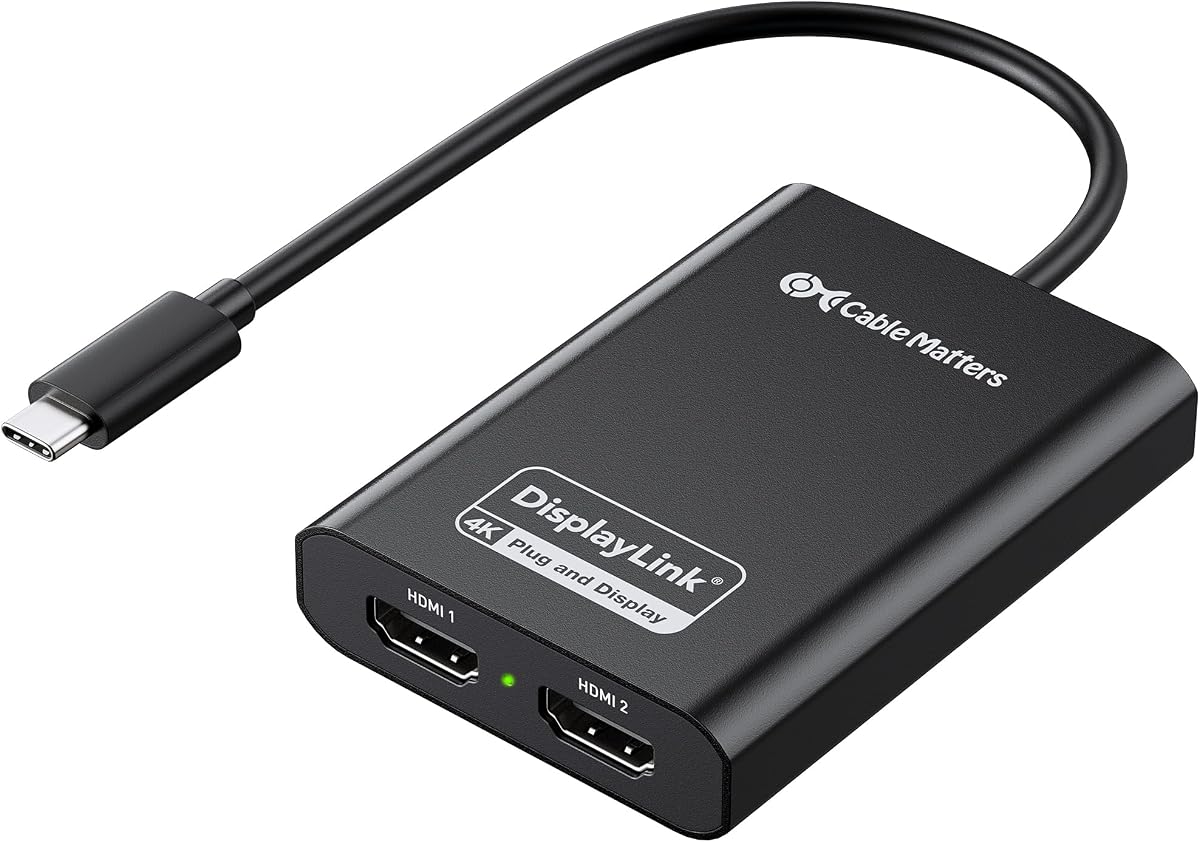
This adapter offers an affordable way to extend your display workspace. It supports resolutions up to 2560×1440 and allows you to connect multiple monitors by using one adapter per screen. This flexibility is great for users who need to expand their view across several screens without buying a heavy dock.
We may earn a commission when you buy through this link, at no additional cost to you.
The inclusion of a microphone input and earphone output adds convenience for calls or listening without extra dongles. It works on a wide range of systems including Windows, macOS, and ChromeOS. The 18-month warranty provides additional peace of mind for budget-conscious buyers.
However, each monitor requires its own adapter, which can lead to cable clutter if you need more than one display. The resolution is capped at 1440p, which is sufficient for text and spreadsheets but may not suit high-end design work. These factors make it a practical choice for basic productivity.
If you want to build a multi-monitor setup on a budget, this adapter is a strong contender. It balances cost and functionality well, making it accessible for students or home office users who need extra screen real estate.
Built-in microphone and earphone jacks allow for easy audio setup without needing a separate sound device.
Up to six monitors can be connected in total across different adapters, offering high scalability for large workspaces.
We may earn a commission when you buy through this link, at no additional cost to you.
Plugable is known for reliable connectivity products and this adapter delivers on that promise. It adds two external displays to Macs that otherwise support only one external monitor. The setup process includes clear instructions for macOS permissions to ensure smooth operation.
We may earn a commission when you buy through this link, at no additional cost to you.
The adapter supports 4K 60Hz resolution which provides sharp visuals for detailed work. Plugable includes lifetime support from their team, which is a significant benefit for users who need long-term reliability. It is built to withstand regular use in office environments.
A limitation is that macOS users need to manually allow screen recording permissions during setup. Additionally, it does not support audio pass-through, so you will need to route audio separately. These are minor issues that do not detract from its core functionality.
This adapter is a solid choice for Mac users who need a dependable dual-monitor setup. The combination of performance and support makes it a trustworthy option for professional use.
Specifically designed to overcome Apple hardware limits on external display support for M1 to M5 laptops.
Access to North American support experts ensures you have help whenever issues arise with the product.
We may earn a commission when you buy through this link, at no additional cost to you.
This model stands out for its flexible connectivity allowing you to use either USB-C or USB-A. The attached USB-A adapter makes it convenient to use with older laptops or when USB-C ports are occupied. It uses the DL-6950 chipset which ensures stable and fast video transmission.
We may earn a commission when you buy through this link, at no additional cost to you.
It is optimized for productivity apps and coding which makes it a great fit for business users. The lifetime support from Plugable ensures you have a safety net for any configuration issues. It is robust enough for daily IT deployment in corporate environments.
The main drawback is that it is not recommended for macOS due to driver limitations which can complicate setup. It also lacks support for streaming protected content which limits its use for entertainment. However for work focused users these limits are not significant.
If you need a reliable adapter for Windows or ChromeOS environments this is a top tier option. The build quality and support make it a worthy investment for long term professional use.
Switch between USB-C and USB-A without carrying extra dongles thanks to the integrated adapter cable.
The DL-6950 chipset handles dual 4K displays efficiently to prevent lag or stuttering during multitasking.
We may earn a commission when you buy through this link, at no additional cost to you.
This mini dock is designed for users who need to add Ethernet and dual video outputs to a laptop. It fits in small spaces and is perfect for workspaces where desk real estate is limited. The TAA compliance makes it suitable for government procurement needs.
We may earn a commission when you buy through this link, at no additional cost to you.
The Gigabit Ethernet port ensures a stable wired internet connection which is crucial for video calls and large file transfers. It works with ChromeOS and Windows systems and comes with a short cable to reduce port strain on your device.
The main limitation is that it requires a USB-A port which may not be available on newer laptops without an adapter. It also lacks USB data ports for peripherals meaning you might need a separate hub for USB devices.
Choose this dock if you need a compact solution to add Ethernet and video to a Surface Pro or similar laptop. It is a practical choice for office environments that require reliable wired network connections.
Built-in Gigabit Ethernet provides faster and more stable internet than wireless connections.
The mini dock form factor makes it easy to carry in a bag for meetings or home office rotations.
We may earn a commission when you buy through this link, at no additional cost to you.
This adapter is tailored for Mac users who want dual external displays via DisplayPort. It allows M1 and M2 MacBooks to bypass single-screen limits effectively. The aluminum design matches MacBook aesthetics and helps with heat dissipation during use.
We may earn a commission when you buy through this link, at no additional cost to you.
The 100W Power Delivery port ensures your laptop remains fully powered while driving two screens. It includes three USB-A ports for peripherals which adds convenience to your workspace. The rating of 4.8 indicates high user satisfaction with its performance.
You will need to provide DisplayPort to HDMI cables if your monitors do not have native DP inputs. Also remember that drivers must be installed to enable the full functionality of the adapter. These steps are standard for high-performance video adapters.
If you own a Mac and want a premium docking solution this adapter offers the best features for the price. It supports true extended desktop modes which are essential for designers and power users.
DisplayPort outputs support higher bandwidths ensuring crisp visuals at 60Hz refresh rates.
High-grade aluminum alloy provides durability and effective thermal management for consistent performance.
We may earn a commission when you buy through this link, at no additional cost to you.
This adapter is engineered with security in mind using encrypted DL-chip technology. It is ideal for corporate environments where data protection is a priority. It supports dual 4K outputs ensuring your workflow remains efficient without compromising security.
We may earn a commission when you buy through this link, at no additional cost to you.
It works across Windows Mac and ChromeOS systems making it versatile for mixed device environments. The included support options are responsive with clear contact methods for issues. This adds to its reliability for professional deployments.
Linux users should note that it does not support Linux or Unix systems which limits its utility for open-source users. It also requires driver installation before it can function. These are standard constraints for secure enterprise adapters.
For businesses looking to equip their teams with secure and reliable display adapters this is an excellent choice. The combination of security features and performance makes it a standout in the category.
Encrypted DL-chip technology safeguards sensitive data during transmission between laptop and displays.
Support for multiple major operating systems makes it suitable for organizations with diverse device fleets.
We may earn a commission when you buy through this link, at no additional cost to you.
This adapter is DisplayLink certified which ensures it meets strict performance standards. It breaks the single-display limit on many MacBooks allowing you to use two external monitors. The aluminum housing helps manage heat during operation keeping the unit stable.
We may earn a commission when you buy through this link, at no additional cost to you.
It is designed to work well with Mac systems though it requires Screen Recording permissions to function properly. The HDMI ports support 4K at 60Hz which provides sharp visuals for text and images. It is a robust solution for expanding Mac workspaces.
The main challenge is the setup process on macOS which involves enabling permissions in System Settings. Also streaming services with HDCP will not work which is a hardware limitation. These are manageable trade-offs for the added productivity.
If you use a Mac and need reliable dual monitor support this adapter is a certified and solid choice. It balances quality and functionality well for daily office tasks.
DisplayLink certification ensures the adapter meets tested standards for reliability and compatibility.
Premium aluminum construction ensures durability and efficient heat dissipation during extended use.
We may earn a commission when you buy through this link, at no additional cost to you.
Sonnet offers a reliable solution for connecting two 4K displays to a single Thunderbolt port. It is compatible with M1 and M2 MacBooks as well as other systems. The unit includes a USB-A adapter to make it easier to connect to older devices.
We may earn a commission when you buy through this link, at no additional cost to you.
It supports higher refresh rates up to 144Hz at lower resolutions which is great for smooth scrolling in apps. Audio is also supported through the HDMI connection simplifying your audio setup. This makes it a versatile tool for work and casual use.
The main constraint is that it is limited to two displays which may not be enough for those who need a massive workspace. Also driver installation is required to activate the full features. These are standard limitations for adapters in this class.
Choose this adapter if you want a reputable brand solution that works well with MacBooks. It offers good performance and includes useful accessories like the USB adapter to help you get started quickly.
Connects directly to Thunderbolt 3 and 4 ports ensuring high bandwidth for video transmission.
Supports refresh rates up to 144Hz providing smoother visuals on compatible monitors.
We may earn a commission when you buy through this link, at no additional cost to you.
Selecting the right adapter depends on your specific hardware and workflow needs. Understanding key factors will help you find a device that offers stability and performance without unnecessary complexity.
Some adapters use HDMI outputs while others use DisplayPort which may affect cable needs. If your monitors have HDMI you will need DisplayPort to HDMI cables for DP adapters. Always check your monitor inputs before buying to ensure a simple setup.
Choosing the right interface ensures you do not need extra cables after purchase. This saves money and reduces clutter on your desk.
Look for adapters that support 4K at 60Hz for smooth visuals. Lower refresh rates like 30Hz can cause flicker and make text hard to read. Ensure the adapter matches your monitors maximum resolution for the best experience.
Prioritize 4K 60Hz support to avoid visual lag or instability. This is critical for professional work and multitasking efficiency.
Most DisplayLink adapters need you to install drivers before they work. This is a one-time setup process but requires administrative access to your computer. Read the documentation carefully to avoid permission issues on your operating system.
Be prepared to install software for optimal performance. Most systems handle this easily but plan for a few minutes of setup time.
Windows and macOS have different requirements for DisplayLink adapters. Mac users must allow specific permissions in settings while Windows users often have easier plug-and-play. Check if the adapter supports your specific version of your operating system.
Verify OS compatibility to prevent setup frustration. Most top adapters support Windows 10 and macOS 11 or later.
If you work on a laptop ensure the adapter supports Power Delivery. A 100W PD port will keep your laptop charged while using external monitors. Without this you may need a separate charger which can clutter your workspace.
Choose an adapter with PD if you want a clean and portable setup. This keeps your laptop powered during long work sessions.
Aluminum housings are durable and help dissipate heat from internal components. Compact designs fit better in laptop bags making them ideal for travelers. Avoid cheap plastic models that may break easily under daily use.
Select a model with a solid build to ensure longevity. Good heat dissipation is key for maintaining performance over time.
Some models include extra USB-A ports for peripherals like mice and keyboards. This can reduce the need for a separate hub saving desk space. Check the number of ports you need before making your final decision.
Extra ports add value by connecting your devices directly. Look for models that match your peripheral needs.
Brands like Plugable offer lifetime technical support which is a major advantage. Others may offer one or two-year limited warranties. Good support ensures you get help quickly if issues arise.
Prioritize brands with strong support records. Reliable customer service adds significant value to your purchase.
First ensure your adapter is connected to a USB 3.0 or higher port to maintain performance. Connect your monitors and power adapter and then install the DisplayLink driver software. Restart your computer to apply changes and verify the display settings.
Next check your system settings to ensure the displays are set to extended mode. This allows you to move windows between screens freely. If using Mac allow Screen Recording permissions in privacy settings to enable full functionality.
Finally keep your adapter clean by wiping it with a soft dry cloth. Avoid exposing it to water or extreme heat to maintain its durability. Disconnecting it when traveling helps prevent cable strain and ensures it stays in good condition.
No DisplayLink adapters are designed for computers not gaming consoles. They rely on USB connections that consoles do not use for video output. Use standard HDMI cables for PlayStation or Xbox to ensure compatibility.
Most DisplayLink adapters do not support HDCP protected content like Netflix. This is a hardware limitation for copyright compliance. Use a standard HDMI connection for streaming services to avoid black screens.
Drivers enable the adapter to process video data beyond your computer native video output. Without them the OS cannot communicate with the device. Installation is required for full dual-monitor functionality.
Linux support is limited for DisplayLink adapters. While some open-source options exist they may not be fully functional. Windows and macOS remain the primary supported platforms for best results.
Some models include a dedicated Power Delivery port for charging. Check the product specs to confirm if it supports 100W input. Not all adapters pass power through the video port.
Most adapters support two external monitors per device. Some units allow up to three if using daisy chaining on specific hardware. Always check the product description for maximum display limits.
Yes many DisplayLink adapters support ChromeOS 100 or later. Ensure you have the latest version of ChromeOS installed for best results. Driver installation is often automatic on this platform.
These adapters are designed to work on a single USB-C port for video and data. If you need charging as well look for models with a PD port. This allows you to use one port for all needs.
We hope this guide helps you find the ideal adapter for your setup. The models listed cover a range of needs from budget to premium performance. Each option offers reliable dual-monitor support for productivity tasks.
Consider your operating system and monitor types before making a purchase. Look for adapters that match your laptop ports and support your workflow requirements. This ensures a smooth setup and long-term satisfaction.
Please verify current details on the manufacturer or retailer site before buying. Prices and availability may change so always check the latest specifications. This ensures you get the right fit for your needs.