
Acer 4-in-1 USB C Hub
4.2Editor score
Dual 4K 60Hz Output
100W Power Delivery
5Gbps USB-A Data Port
This guide compares the top 10 Dual HDMI Monitor Adapter models for 2026, evaluating performance, compatibility, and features to help you choose the right one.
Finding the right Dual HDMI Monitor Adapter can transform your workspace by enabling multiple displays from a single source. Whether you are a developer, designer, or business professional, having extra screen real estate boosts productivity and streamlines workflows significantly.
We evaluated ten leading models based on resolution support, connection types, and OS compatibility. Our analysis focuses on real-world performance metrics, driver requirements, and build quality to ensure you select a reliable solution for your specific computing environment.
Each pick highlights unique strengths like 4K support or USB-C power delivery. Prices and availability fluctuate regularly, so verify current details before purchasing. This guide equips you with the knowledge to make an informed decision for your dual monitor setup needs.
4.2Editor score
4.5Editor score
4.1Editor score
This side-by-side comparison reviews all ten selected adapters, highlighting their core specifications, supported resolutions, and operational constraints to help you quickly identify the model that fits your hardware and workflow requirements.


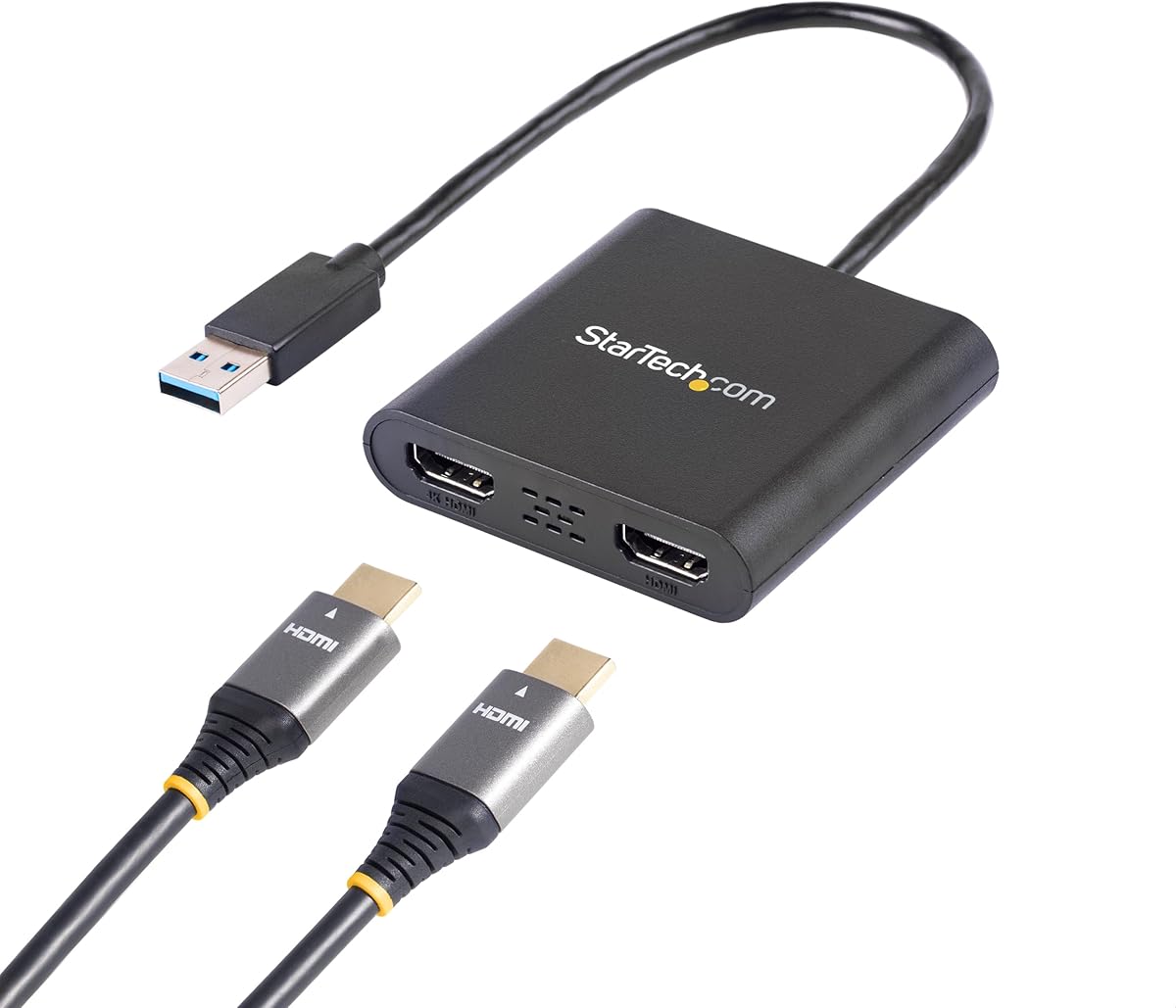
The StarTech USB-A 3.0 adapter is a robust choice for enterprise environments requiring reliable multi-monitor setups. It supports extended desktop configurations with a mix of 4K and 1080p resolutions while maintaining stable video output.
We may earn a commission when you buy through this link, at no additional cost to you.
Its standout quality is the dedicated IT professional focus. The driver is optimized for X86 and ARM platforms including modern Copilot PCs. You get full audio support over HDMI and HDCP compliance for secure content streaming.
Trade-offs include a lack of macOS support and mandatory driver installation. These are acceptable for Windows-centric offices where standardization and long term support are critical. The short cable limits desk flexibility slightly.
This adapter is ideal for IT managers and home office users who prioritize stability over novelty. It delivers consistent performance for workloads like coding or data analysis where flicker free displays are essential.
Built for enterprise deployments with strict IT requirements for driver control and system stability.
Supports 4K at 30Hz combined with 1080p at 60Hz for a productive dual screen setup.
We may earn a commission when you buy through this link, at no additional cost to you.
The Acer 4-in-1 Hub offers exceptional value for users needing dual 4K displays without breaking the bank. It delivers crisp visuals at 60Hz across two monitors using HDMI 2.0 technology effectively.
We may earn a commission when you buy through this link, at no additional cost to you.
Its strengths include a 100W power delivery port that charges laptops while driving video. The added USB-A port facilitates fast data transfers making it a true multi-purpose solution for daily tasks.
Limitations involve reliance on DisplayPort Alt Mode compatibility which might exclude some older devices. macOS users only get mirrored output rather than extended desktops limiting its utility on Apple hardware.
Budget conscious buyers should choose this for its balance of speed and price. It works seamlessly with modern Windows laptops and supports professional workflows efficiently.
Combines dual video outputs with high speed data transfer and power charging in one unit.
Works with Mac devices but only supports mirroring due to system restrictions.
We may earn a commission when you buy through this link, at no additional cost to you.
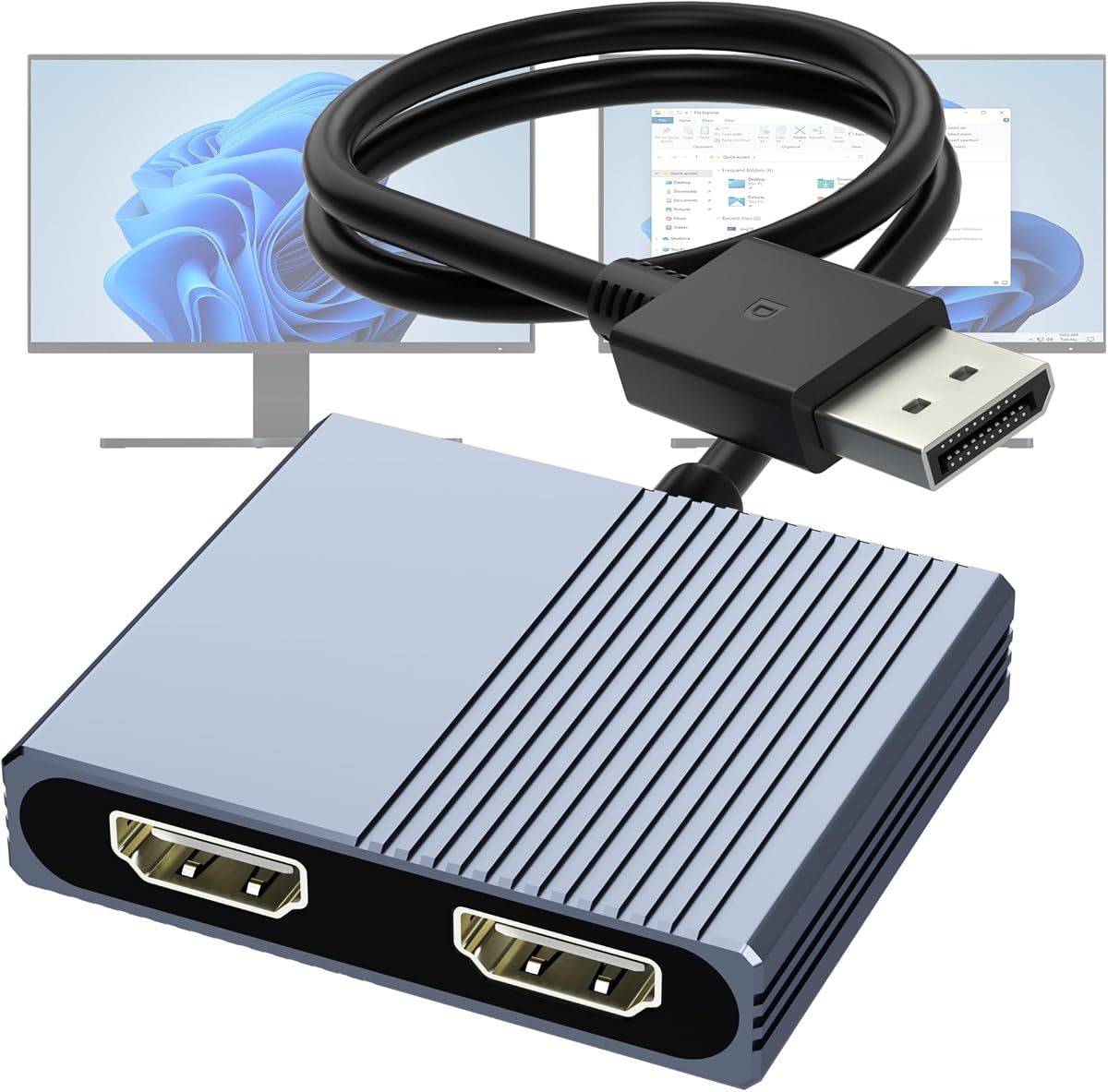
This DisplayPort adapter delivers premium video quality by supporting dual 4K displays at 60Hz. It leverages MST technology to extend your desktop efficiently across two screens for maximum productivity.
We may earn a commission when you buy through this link, at no additional cost to you.
Key strengths include a built-in smart chip that prevents interference and a non-locking design that protects your graphics card. The aluminum housing ensures durability and efficient heat dissipation during long sessions.
Trade-offs involve the need for an external power cable and a dedicated graphics card. Integrated graphics often fail to support extended modes which might limit use on lightweight laptops.
Professionals needing high bandwidth performance should pick this model. It is perfect for video editors or traders who require smooth 60Hz refresh rates on multiple screens simultaneously.
Utilizes DisplayPort 1.4 to drive dual 4K screens at 60Hz without compromising quality.
Features smart chips and shielding to ensure long term reliability and signal integrity.
We may earn a commission when you buy through this link, at no additional cost to you.
The WAVLINK splitter stands out for supporting both macOS and Windows systems. It allows for three separate screens which is rare at this price point for extended desktop configurations.
We may earn a commission when you buy through this link, at no additional cost to you.
It supports resolutions up to 1080p at 60Hz ensuring smooth motion for general productivity tasks. The adapter works via USB-A or USB-C giving you flexibility depending on your available ports.
Trade-offs include requiring driver installation and lacking 4K support. These are acceptable trade-offs for users who need compatibility across different operating systems rather than ultra high definition visuals.
Teams with mixed device environments should choose this adapter. It simplifies hardware setups by working across multiple OS platforms without needing different adapters for each device.
Designed to function seamlessly across Windows, macOS, and Chrome OS environments.
Optimized for web apps and office work rather than high definition media playback.
We may earn a commission when you buy through this link, at no additional cost to you.
The OREI SplitExtend adapter connects a single source to two external displays effectively. It supports 4K resolutions at 30Hz and helps create a three-screen workspace for increased productivity.
We may earn a commission when you buy through this link, at no additional cost to you.
It features both USB-A and USB-C connections via an integrated adapter making it versatile for various laptop generations. The package includes a manual and support for a reliable user experience.
Trade-offs include the requirement for an Intel i5 processor or higher. This limits compatibility with lower powered devices but ensures stable performance for those who meet the system standards.
Business users with standard office laptops should find this adapter useful. It provides a straightforward path to dual external monitors without complex hardware modifications or external GPUs.
Allows for mirrored or extended displays to boost your current workstation efficiency.
Supports Windows and macOS versions with specific processor requirements for best results.
We may earn a commission when you buy through this link, at no additional cost to you.
The Selore docking station offers an 8-in-1 solution for extensive connectivity needs. It supports dual 4K displays at 60Hz while providing charging and data ports for peripherals.
We may earn a commission when you buy through this link, at no additional cost to you.
Its strengths include a 100W power delivery input ensuring your laptop stays charged during heavy use. The SD card slot and USB ports make it easy to manage files and peripherals simultaneously.
Trade-offs include macOS limitations where only mirror mode is supported. Additionally you need a full-featured USB-C or Thunderbolt port to activate all video functions effectively.
Power users with modern laptops will appreciate this all-in-one hub. It replaces multiple adapters with a single compact unit saving desk space while improving workflow efficiency.
Combines video data and power in one hub to reduce cable clutter on your desk.
Accepts 100W input to keep high performance laptops running without extra cables.
We may earn a commission when you buy through this link, at no additional cost to you.
This HDMI splitter is designed for users who need identical displays on two screens. It offers a simple 4K 30Hz solution without the need for complex driver installations or settings.
We may earn a commission when you buy through this link, at no additional cost to you.
Its strengths include automatic audio synchronization and support for various HDMI sources like game consoles and PCs. It works instantly upon connection making it ideal for quick presentations.
Trade-offs are significant as it does not support extended modes. This means you cannot use separate workspaces on each monitor which limits its utility for multitasking professionals.
Retailers or presenters who need identical screens should choose this adapter. It ensures consistent visual output across multiple displays without requiring technical configuration steps.
Requires no software installation ensuring immediate display output upon connection.
Perfect for scenarios where two screens must show the exact same content.
We may earn a commission when you buy through this link, at no additional cost to you.
The Selore&S‑Global adapter provides a compact way to expand modern laptops with dual 4K displays. It supports 60Hz output ensuring smooth video for professional applications.
We may earn a commission when you buy through this link, at no additional cost to you.
Its strengths include a dedicated USB-A port for peripherals and a 100W power delivery port for charging. This combination allows you to maintain power and data connectivity while adding screens.
Trade-offs involve macOS mirror mode limits and strict USB-C port requirements. Users must ensure their device supports DisplayPort Alt Mode to avoid compatibility issues with video signals.
Users with high-end USB-C laptops will benefit from this adapter. It streamlines your setup by combining power data and video into a single portable unit.
Combines high-speed video and data transfer with fast charging in a compact design.
Slim profile fits easily in laptop bags for mobile work setups.
We may earn a commission when you buy through this link, at no additional cost to you.
This DisplayPort MST hub is engineered for desktop users with dedicated graphics cards. It supports dual 4K outputs at 60Hz allowing for immersive visual setups.
We may earn a commission when you buy through this link, at no additional cost to you.
Its strengths include a rugged aluminum housing and gold-plated connectors ensuring stable signal transmission. The design effectively manages heat even under sustained heavy loads.
Trade-offs involve the requirement for DP 1.4 which limits compatibility with older hardware. Integrated graphics often fail to support the extended display mode necessary for dual monitors.
Gamers and designers needing high refresh rates should choose this adapter. It maximizes GPU performance by splitting signals efficiently to multiple high resolution screens.
Features gold-plated ports and aluminum housing to withstand frequent connections.
Designed specifically for dedicated GPUs to ensure optimal bandwidth utilization.
We may earn a commission when you buy through this link, at no additional cost to you.
The UANTIN 6-in-1 hub provides extensive connectivity in a compact form factor. It supports dual 4K displays and multiple USB ports to manage various peripherals efficiently.
We may earn a commission when you buy through this link, at no additional cost to you.
Its strengths include a 100W power delivery port for charging and a plug-and-play design requiring no drivers. This makes it easy to set up for immediate productivity.
Trade-offs involve the use of USB 2.0 ports which may limit transfer speeds. Additionally the fixed cable length might not suit all desk configurations depending on your layout needs.
Mobile professionals needing a lightweight docking solution should choose this hub. It offers a balanced mix of video data and power in a portable package.
Slim design ensures easy transport while offering essential ports for work.
Works instantly upon connection allowing you to start working immediately.
We may earn a commission when you buy through this link, at no additional cost to you.
Selecting the right Dual HDMI Monitor Adapter involves evaluating your device capabilities and display requirements to ensure seamless multi-monitor performance.
Check your laptop for available ports like USB-A USB-C or DisplayPort to ensure compatibility. Adapters vary in supported protocols so matching the physical port and signal standard is critical.
Choose an adapter that matches your primary interface for reliable video output without extra dongles.
Verify if the adapter supports 4K at 30Hz or 60Hz based on your visual needs. Higher refresh rates ensure smoother motion which is essential for design work or media consumption.
Prioritize 4K 60Hz support if you need fluid movement and high clarity on both screens.
Different adapters have different OS limits with some restricting macOS to mirror mode. Windows often offers extended desktop support via MST protocols but requires driver checks.
Confirm the adapter explicitly supports your OS mode requirements before purchasing to avoid display issues.
Some adapters need driver installation while others work plug-and-play. Drivers can offer better performance but may require admin rights on managed systems.
Select plug-and-play models if you need immediate setup without software installation or IT permissions.
Look for USB-C ports that support power delivery to charge your laptop while using external displays. This reduces cable clutter and ensures your device stays powered during long sessions.
A 100W PD port is recommended for powerful laptops to maintain stable battery levels during work.
Aluminum housings help dissipate heat and protect internal components from damage. Gold-plated connectors prevent corrosion ensuring stable signal transmission over time.
Invest in adapters with durable materials to ensure long-term reliability in daily professional use.
A longer warranty period indicates the manufacturer stands behind their product quality. Look for at least 12 months of coverage to protect against early failures.
Choose models with solid warranty terms to reduce risk when integrating new hardware into your workflow.
The length of the adapter cable impacts desk flexibility and setup ergonomics. Shorter cables save space but might limit your monitor placement options.
Assess your workspace dimensions to decide if the included cable length suits your monitor arrangement.
Connect the adapter to your laptop's available port securely before attaching any HDMI cables to avoid port damage.
Install necessary drivers if required by the operating system to enable full extended display capabilities.
Store the adapter in a protective case when transporting to prevent bent pins and port wear.
Not all adapters support extended displays. Many macOS adapters only mirror screens while others require specific protocols like MST. Always check product details for extended desktop support.
Most adapters do not need external power but some high-bandwidth models require it for dual 4K output. Check the product specs to see if an external cable is included.
HDMI 2.0 supports higher bandwidth allowing for 4K at 60Hz while 1.4 is limited to 30Hz. Choose HDMI 2.0 for smoother visuals and modern display requirements.
Some adapters use USB graphics chips that need specific drivers to render video correctly. This ensures stable output and better performance on various operating systems.
Compatibility depends on your laptop's port types and capabilities. Ensure it supports USB 3.0 DisplayPort Alt Mode or DisplayPort to enable video output functions.
Most adapters are designed for PC displays. Consoles may not support extended modes and often need direct HDMI connections without an adapter for best performance.
Go to display settings in your OS to arrange your screens. Enable extended mode and set the correct resolution for each monitor to maximize screen real estate.
Overheating can cause signal drops or performance throttling. Ensure the adapter has vents and is not covered while in use to maintain proper airflow.
These top picks highlight diverse solutions for every workflow need from budget friendly hubs to professional grade adapters.
Prioritize resolution support and OS compatibility to ensure your selected adapter integrates smoothly with your existing hardware.
Check current availability and pricing before purchasing as stock fluctuates often based on demand.